 TrueFloat
 Add to Chrome
 Add to Firefox
 Add to Edge
 Add to Brave
 Add to Opera
Features
Free, no account, one permission
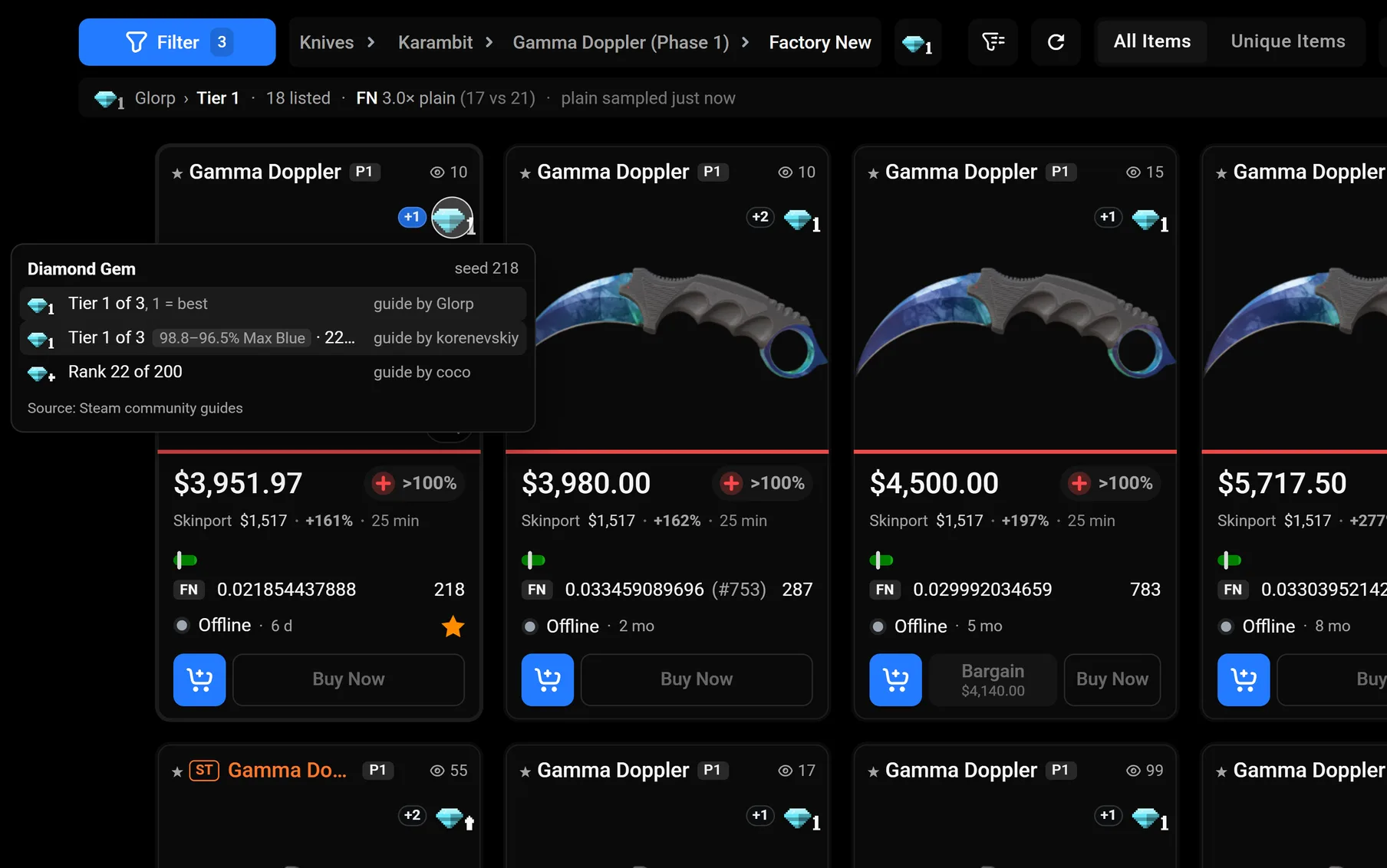
Tier search
Every listing of one tier, in CSFloat's own search.
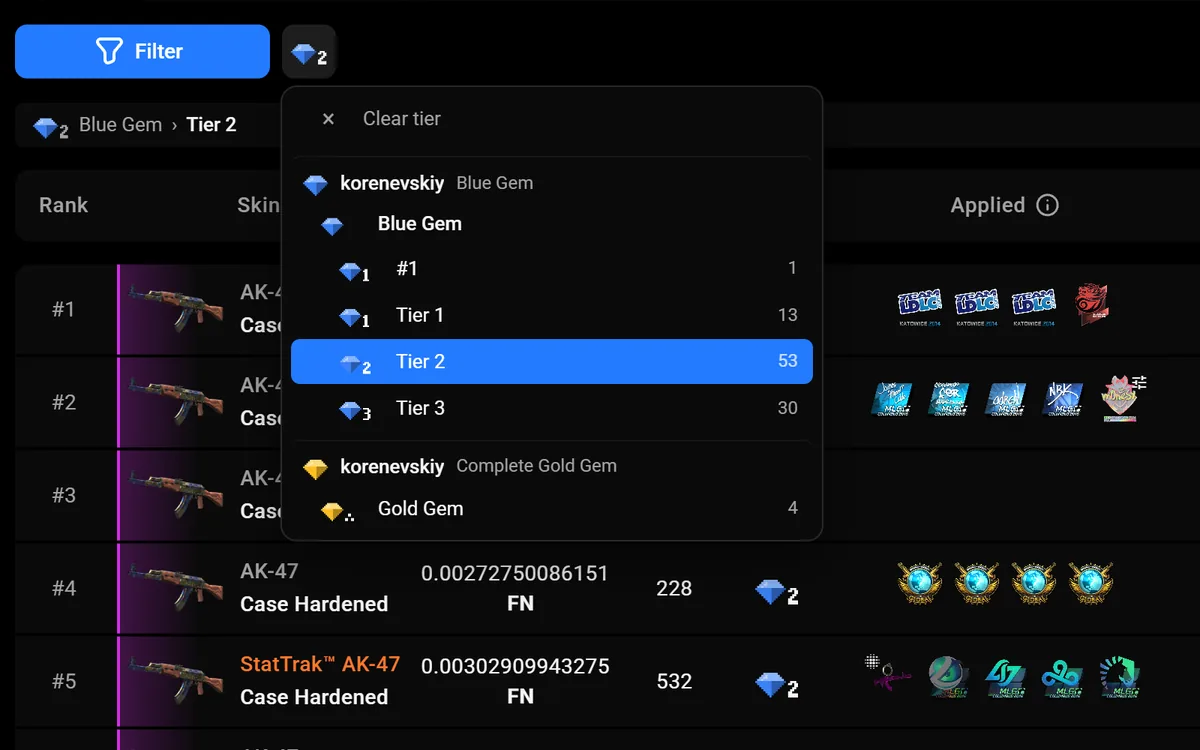
Database tier search
Every known copy of one tier, on csfloat.com/db.
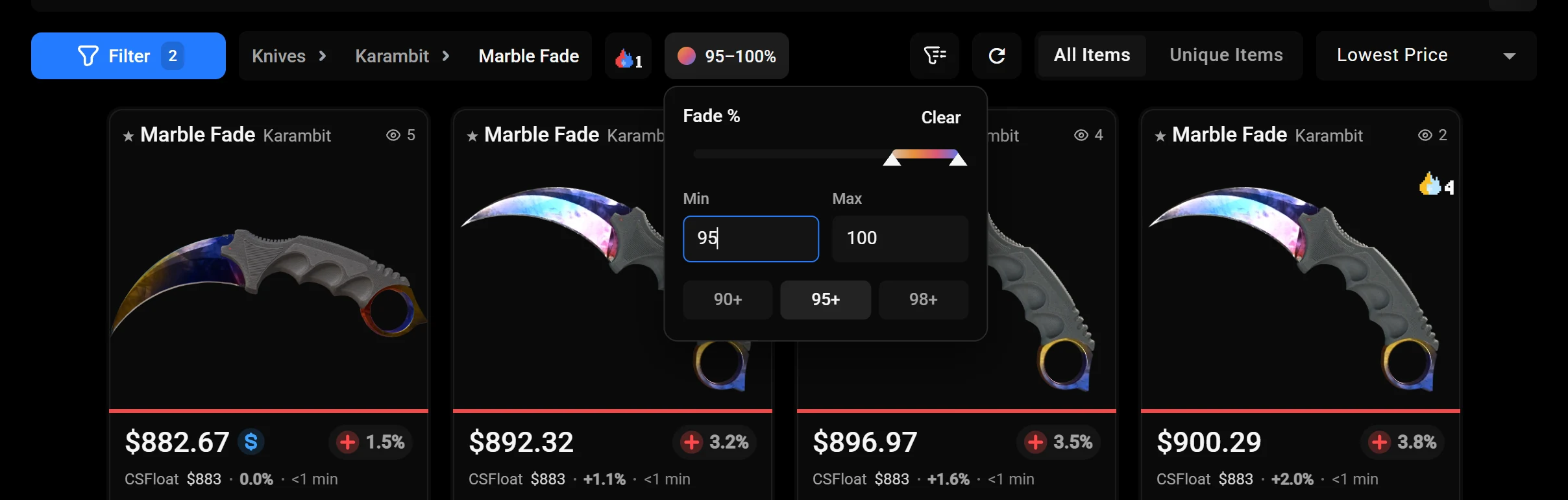
Fade % filter
CSFloat's fade filter in the toolbar, beside Tiers.
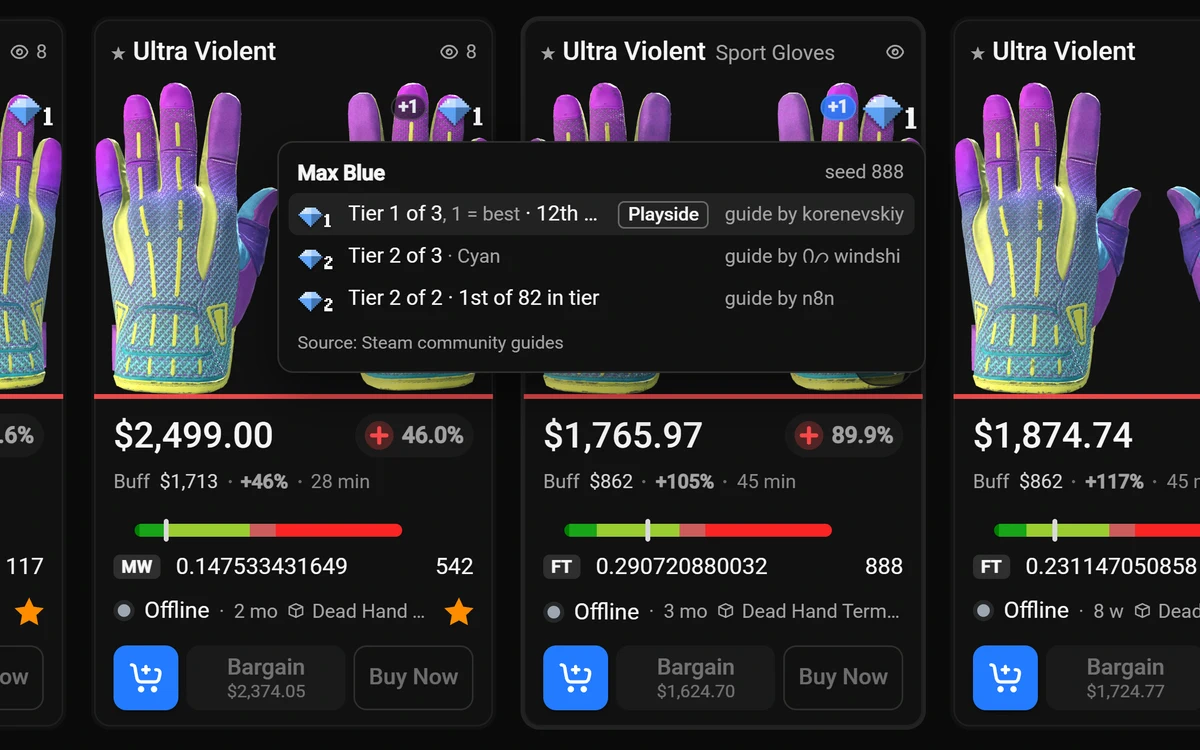
Pattern grades
Best grade as a gem, all guides on hover.
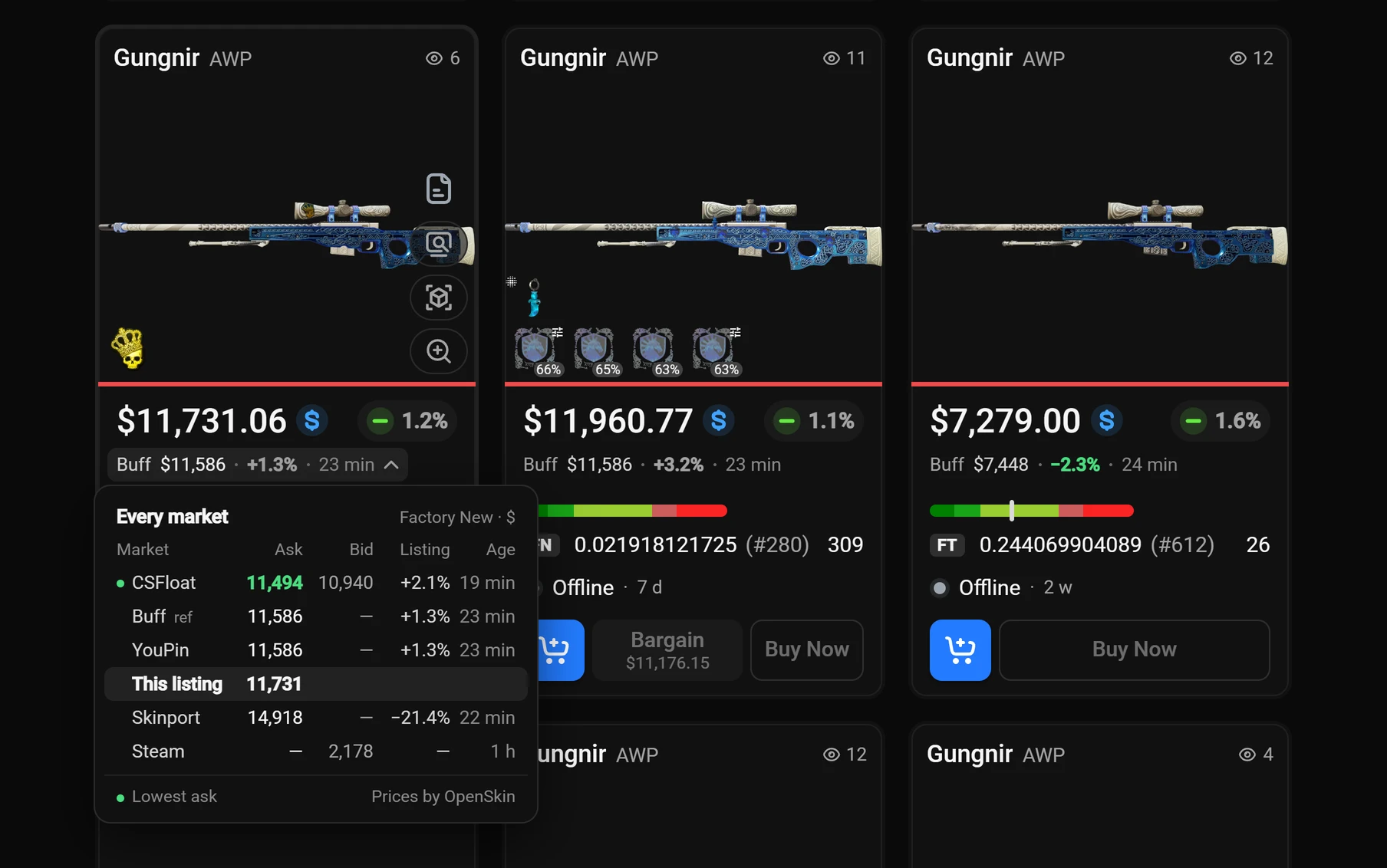
Market prices
Buff, YouPin, Skinport and Steam on cards and listings.
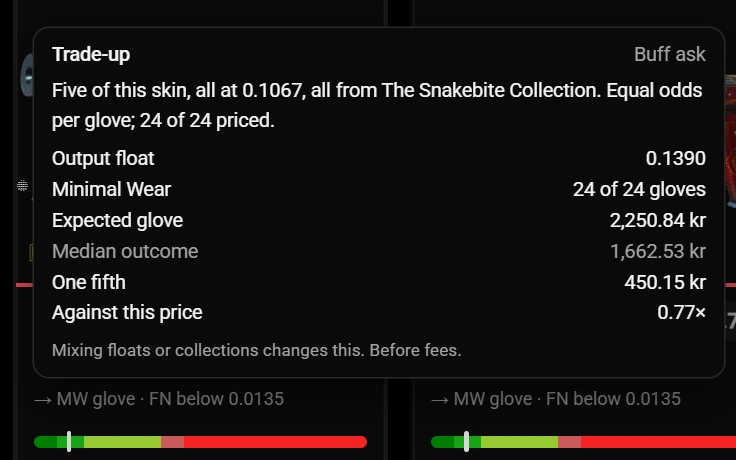
Trade-up wear
The knife or glove wear five of it make.
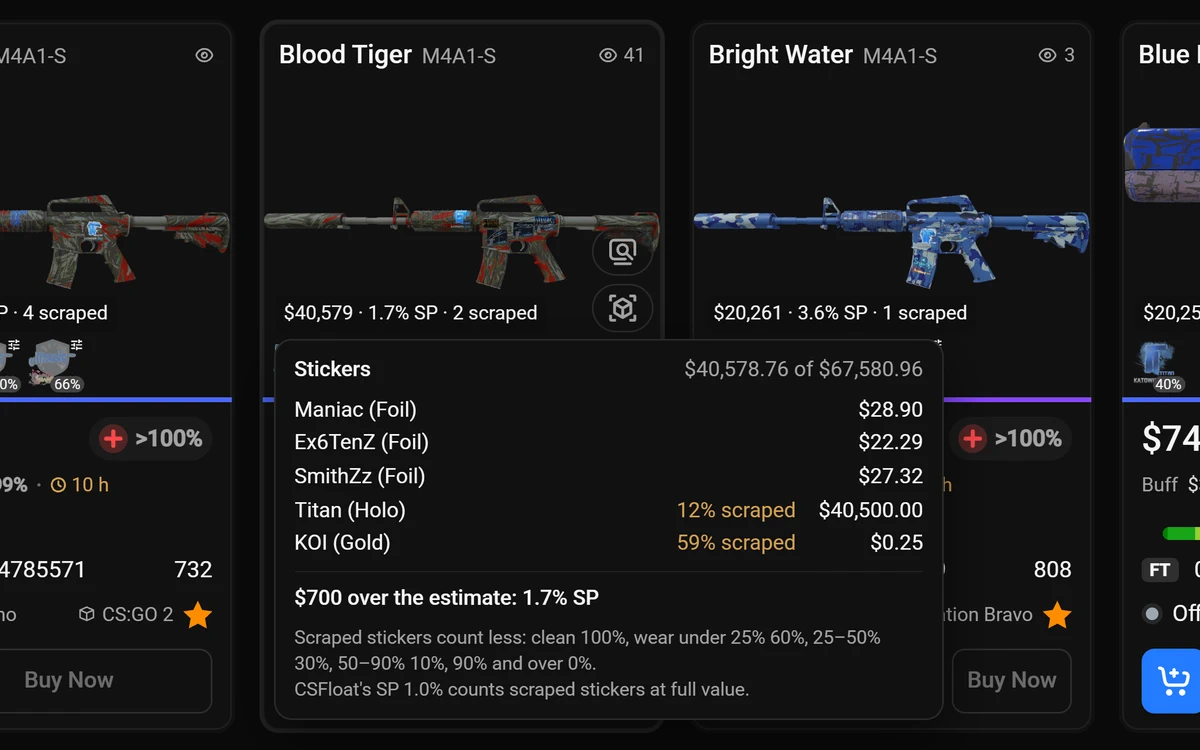
Sticker value
Each sticker priced by wear; scraped ones count less.
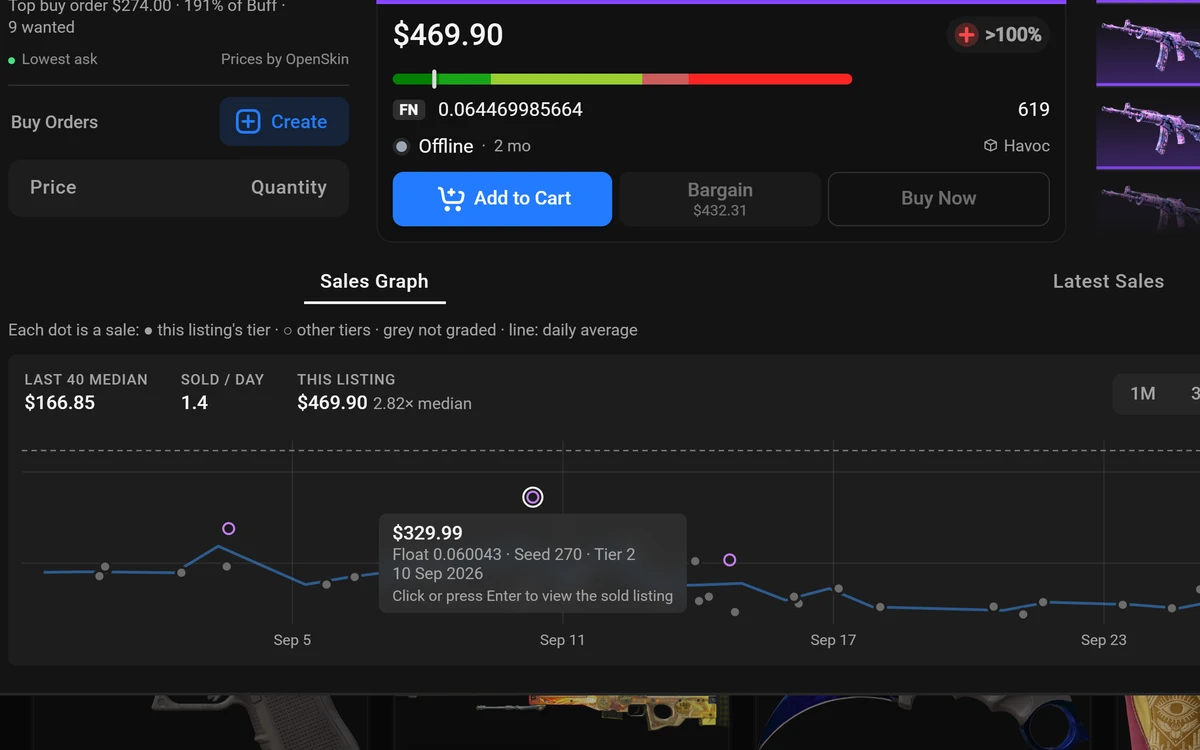
Sales graph
Last 40 sales, each dot in its grade's colour.
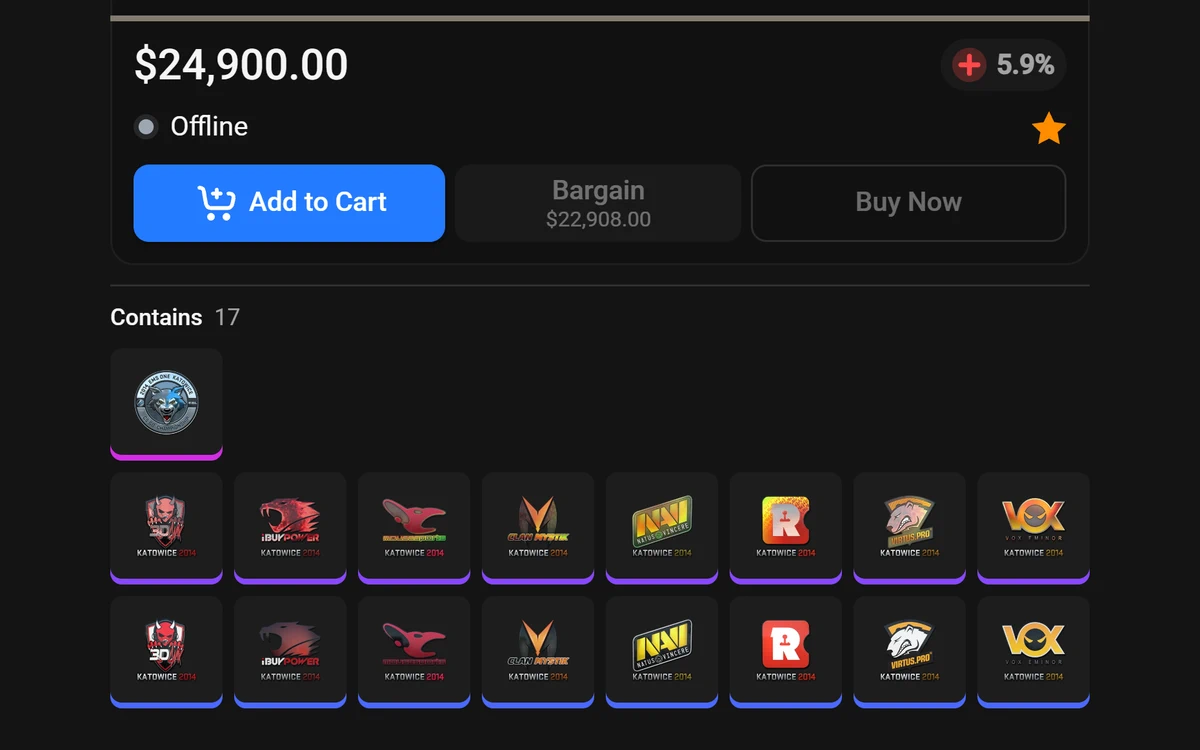
Drops and contents
Where a skin drops from, what a case holds.
Supply status
Whether its case still drops, and since when.
Collection window
A collection's skins by rarity, wear and price.
Grades everywhere
Charms, csfloat.com/db and the sell page get grades too.
Cleaner cards
Real screenshots, short titles and wear badges, each switchable.

Make Offer
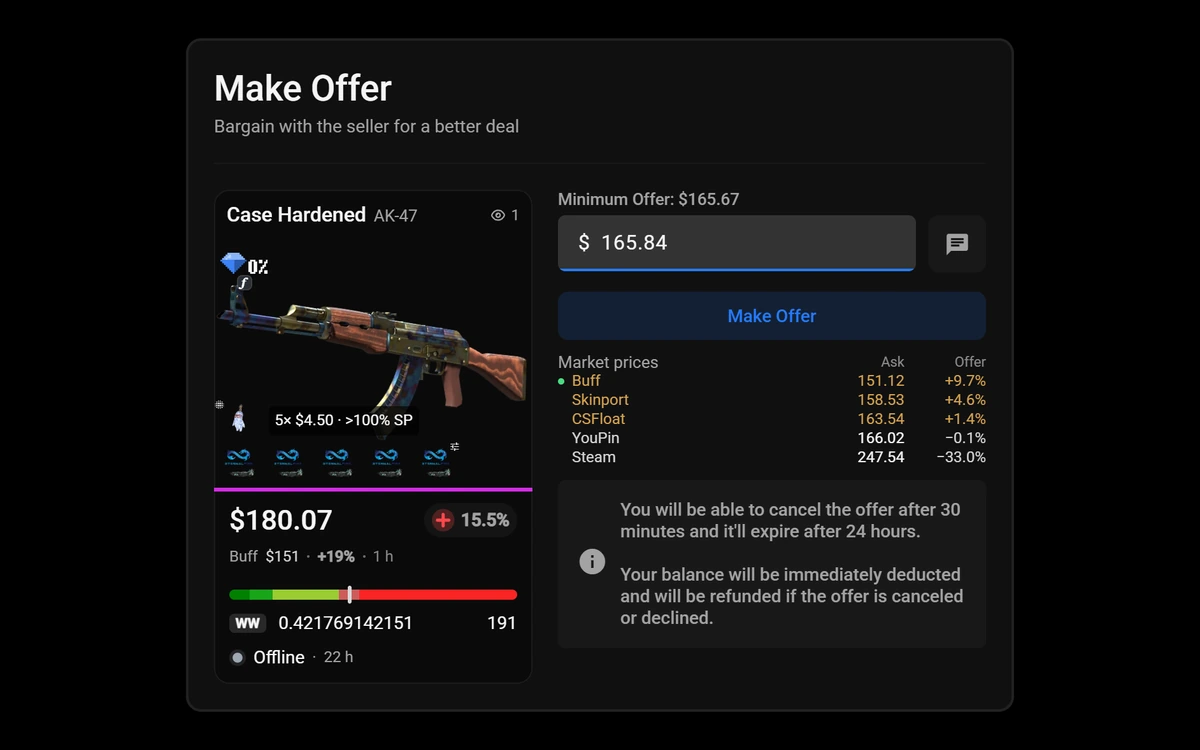
Every market's ask against your offer, in CSFloat's dialog.
Buy orders by tier
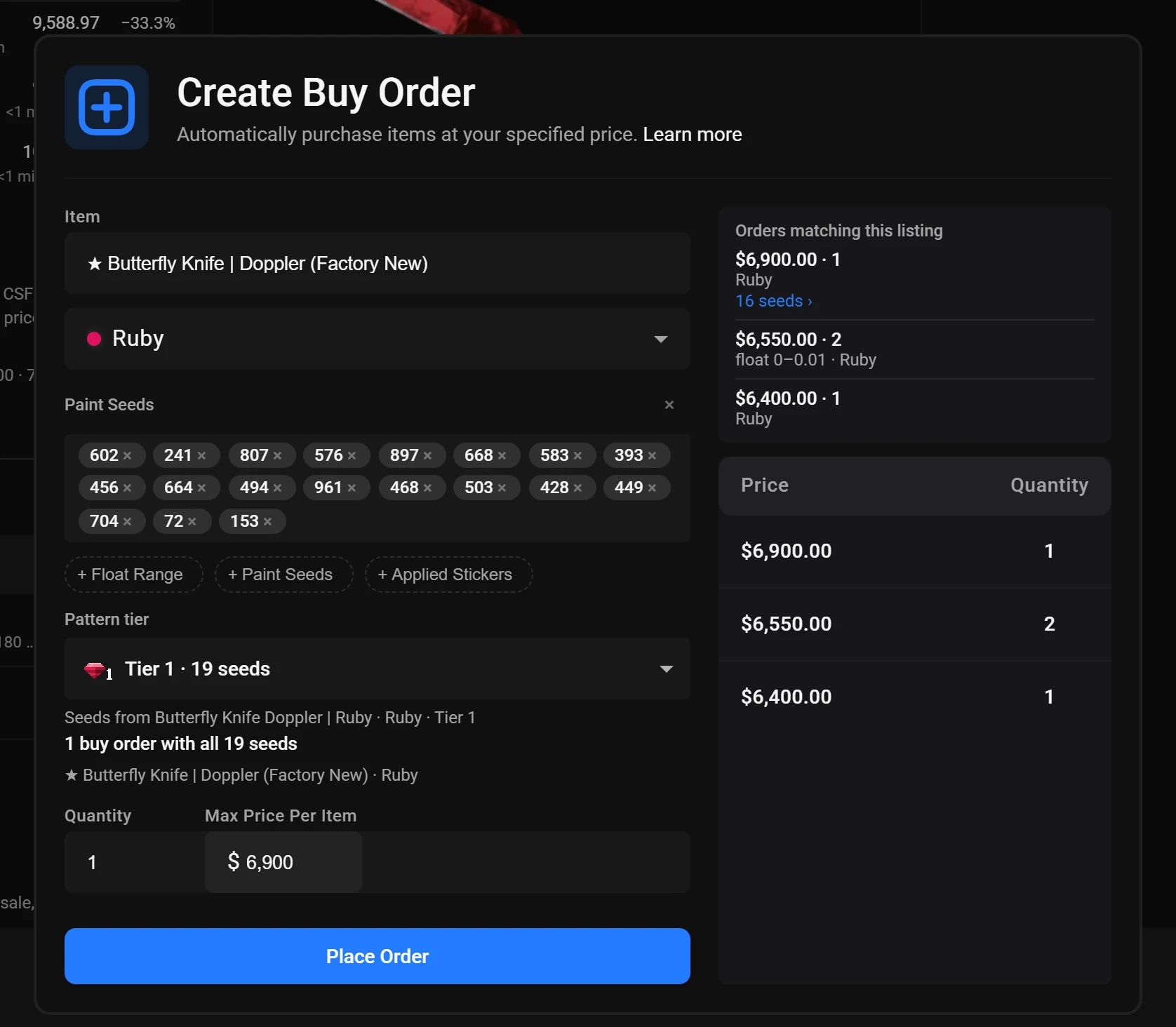
A whole pattern tier as buy orders in Create.
All settings
Tiers and grades
- Pattern grades on cards A seed graded by a Steam pattern guide shows its best grade on the card.
- +N for the rest +N beside the gem opens a row with the card's other grades.
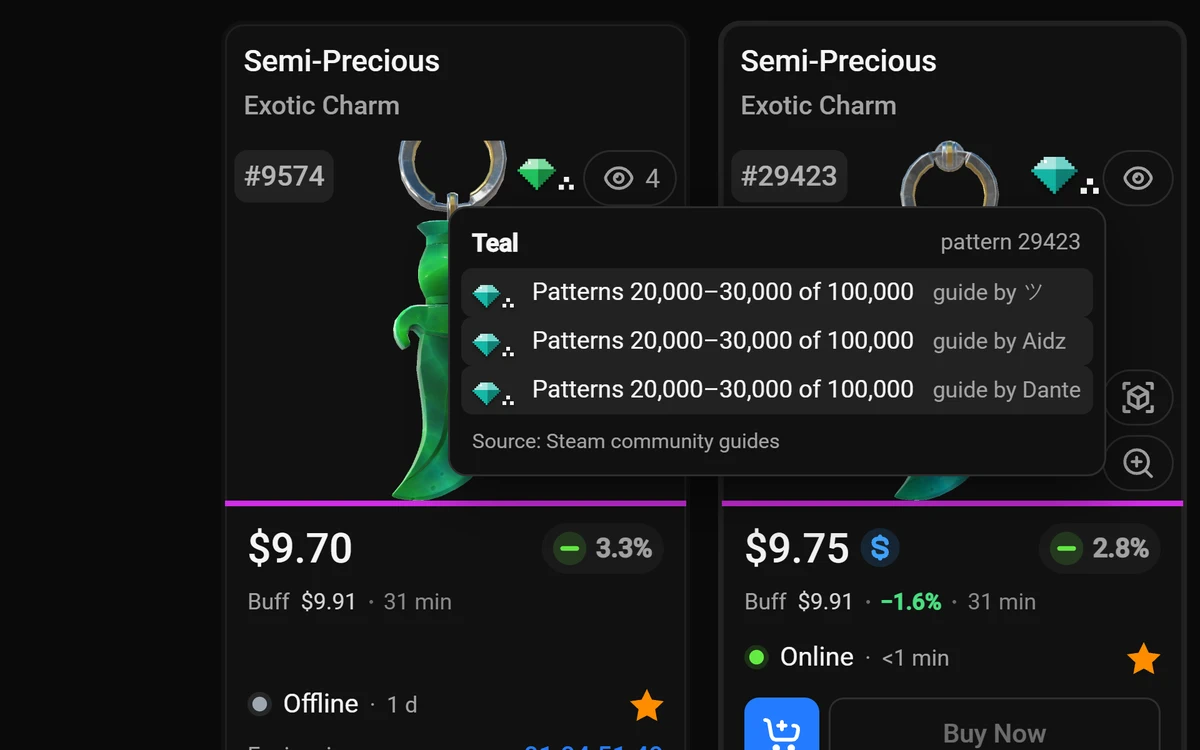
- Every grade on hover Hover or click a grade for every guide's grade of that seed.
- Author links Each author's name links to their guide on Steam.
- Where the seed stands Rows read as a place, such as Tier 3 of 4 or Rank 780 of 1,000.
- Backside grades A grade for the backside of a skin is underlined.
- Best grade first The main gem is the top level in its guide's own order.
- Watchlist grades Watchlist cards show grades too, sold and delisted ones included.
- Grades from the card itself Cards without listing data are graded from the name and seed they show.
- Hourly grade updates Grade changes reach you within an hour while csfloat.com is open.
- Special grade icons Hearts, flame and frost, design grids, rainbow bands and serpents for special patterns.
- Crimson Web tiles Single, Double and Triple Web each get a small red web tile.
- Extra glint A small extra glint on every gem.
- CSFloat badges as icons CSFloat's marks, blue % and fade % included, redrawn top-left with a small f.
- CSFloat marks table Hover or click CSFloat's marks for a table of them.
- CSFloat marks in the listing CSFloat's marks are redrawn in the listing window too.
- Family colours CSFloat's Blue Gem, Fade and Fire & Ice marks take the guides' family colours.
- CSFloat agrees CSFloat's Case Hardened tier joins the Blue Gem grade it agrees with.
- Database grades On csfloat.com/db, a Grade column after Seed shows each row's grade.
- Grade in item history The /db item history window shows the grade after its title.
- Gems in category menus CSFloat's category menus show a gem on skins the guides grade.
- Menu gem hover Hover a menu gem for each family's top tier, seed count and guides.
- Charm grades Charm listings show their pattern grade, as skin cards do.
- Grades on sell page Sell and inventory cards show grades; the best one sits beside the price field.
- Tidy tier names Tier and guide names in clean, consistent words; the author's own on hover.
- Seed nicknames A guide's nickname for a seed, such as Teddy Bear, shows with its grade.
Prices
- Market prices Buff, YouPin, Steam, Skinport and CSFloat prices on csfloat.com, by OpenSkin.
- Price line on cards Each card shows the cheapest market's price and the difference.
- Every market on hover Hover a card's price line for every market's ask, bid, difference and age.
- No premium mark Tier 1–2 cards listed at most 15% over reference get a No premium chip.
- Trade-up wear Covert cards: knife or glove wear, such as → MW glove · FN below 0.0135.
- Trade-up details Hover for the output float and the expected outcome.
- Trade-up left out No line on StatTrak or Souvenir, or when under 90% of outcomes are priced.
- Hide extreme price gaps Gaps over 999% are hidden, on cards and in the listing window.
- Price shown Cheapest ask by default; or Buff, YouPin, Steam, Skinport, CSFloat, ask or bid.Setting
- Prices in the listing window An open listing compares each market's ask, bid, listing count and age.
- Top buy order The highest buy order, on a card's price hover and in the listing window.
- Cases and music kits Market prices for cases, capsules, souvenir packages and music kits too.
- Links to each market Each market in the panel links to the item there, opened on click.
- Ask | Net toggle Switch the listing window's prices between the ask and what you'd net after fees.
- Lowest ask marked The lowest ask across the markets is marked.
- Doppler phase prices Doppler and Gamma Doppler phases are priced per phase, never mixed.
- Your currency Amounts are in your CSFloat currency at CSFloat's own rate, else US$.
- Price age Prices older than 2 hours are marked, older than 48 hours hidden.
- Price file every 30 minutes One price file, the same for everyone, updated every 30 minutes on our server.
- Prices in category menus CSFloat's category menus show the reference price beside CSFloat's from price.
- Menu price sheet Hover a menu price for every market's lowest ask across the item's wears.
- Make Offer asks Each market's ask in the offer dialog, and your offer against it in %.
- Make Offer amber An ask turns amber when your offer reaches it; not on graded items.
- Make Offer context The top buy order and the 30-day average, on one line under the asks.
- Make Offer pattern note A graded item's Market prices hover says markets ignore the pattern.
Cards
- Hide rarity glow Card images drop the rarity gradient; the rarity border stays.
- Real screenshots Cards show the item's real in-game screenshot from csfloat.pics.
- Light loading Screenshots load only for cards near the screen, never in data saver mode.
- Screenshot sharpness High by default, or Full or Balanced; lower uses less memory.Setting
- Cards per row A slider sets 2 to 8 cards per row, or Auto for CSFloat's layout.Setting
- 180 px minimum Cards never get narrower than 180 px; small windows get fewer columns.
- Short titles Skin name first, weapon smaller, on one line; hover for the full name.
- ST / SV tags StatTrak and Souvenir as small tags in the short title.
- Doppler phase chip A Doppler phase shows as a small chip in the title.
- Watch count in title Signed in, the watch count moves from the image to the title row.
- Titles from the card itself Cards without listing data still get a short title and wear badge.
- Wear badge FN, MW, FT, WW or BS beside the float; hover for the full wear.
- Listing age How long ago it was listed, from <1 min to months, in the title row.
- Exact listing time Hover the age for the exact date and time it was listed.
- Ages keep counting Ages update every minute while the tab is in view.
- Image buttons on hover The four image buttons show on hover or focus, always on touch screens.
- Buy buttons always shown Add to Cart, Bargain and Buy Now stay open on grid cards.
- Cards stay still Buy Now cards no longer lift on hover, so no buy button moves under the pointer.
- Priced buttons on one line Buy Now and Bid keep their label and amount on one line.
- Price on one line A card's price stays on one line, also in currencies such as kr.
- Deal badge inside CSFloat's deal badge stays inside the card.
- Status dot in float row On wide cards the seller's status dot joins the float row.
- Auction timer on one line An auction's Expires in, bar and timer share one line.
- Minimum bargain price Signed in, Bargain shows the seller's minimum offer, on cards and listings.
- Sticker value Stickers and charm valued from market prices; scraped stickers count for less.
- Scraped stickers Strict, Guides, Full or Custom: how much a scraped sticker counts.Setting
- Custom share under 10% wear With Custom, the share a sticker scraped under 10% counts; 20% unless set.Setting
- Custom share at 10 to 25% wear With Custom, the share at 10 to 25% wear; 10% unless set.Setting
- Custom share at 25% wear and over With Custom, the share at 25% wear and over; nothing unless set.Setting
- Sticker value on cards Cards show it in CSFloat's SP spot, with the breakdown on hover.
- Compact sticker line A card's sticker line shortens to amount and verdict, such as 4× $1.3k · Stickers free.
- Source on cards Each skin card names the case or package it drops from.
- Stickers on packages Souvenir package cards show the stickers they can carry, as images.
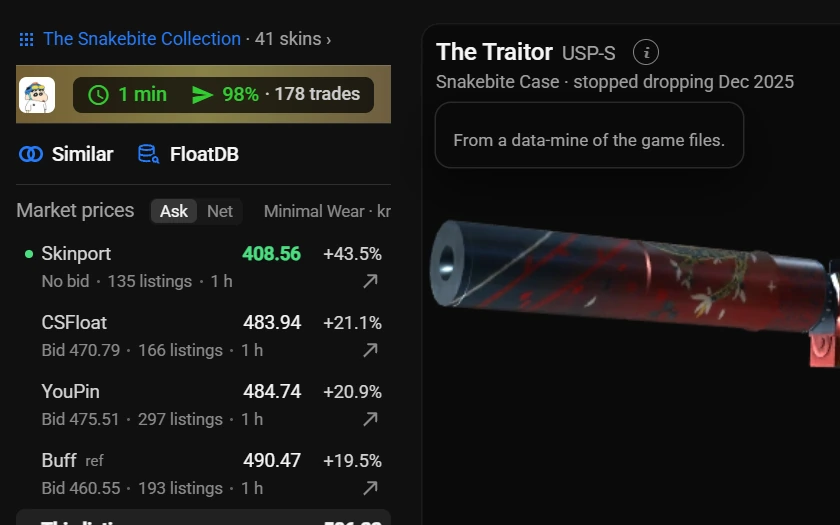
- Supply status The source glyph is filled while it still drops, dashed once it ended.
- Supply on hover Hover for the status, such as Snakebite Case · stopped dropping Dec 2025.
- Unconfirmed claims A data-mined or reported claim says so in its hover note.
Listing window
- One-line description The description shows one line; More opens the rest in place.
- Finish tags as chips Finish tags such as WHITE_1 show as small chips.
- Seller on one row The seller's card is one row, trade speed and rating kept.
- Tidy top The collection link is the first line, the seller one row under it.
- Description behind an i The description moves to a small i after the item's name.
- Buy orders on one line Signed out, Buy Orders takes one line.
- Order conditions Each buy order's float, phase, seeds and stickers, under its price.
- Tier buy orders Create Buy Order fills Paint Seeds from a pattern tier; the grade panel opens it.
- Split big orders Over 25 seeds or 250 items, Place N orders splits it in Create.
- Create price check Create flags a stale or high price and never changes it.
- Matching orders Create lists the buy orders that match the listing.
- Flat side panels The left column's panels become hairlines with no gaps.
- Quiet image buttons The image buttons have no fill until you point at them.
- Underlined tabs Tabs are underlined, with CSFloat's NEW badge hidden.
- Hide Recommendations The Recommendations tab is hidden; Sales Graph and Latest Sales share the row.
- Compact similar list Similar listings are 60 px rows, so six-digit prices fit.
- Full screenshot An open listing always shows the full screenshot, clear of the card's sides.
- Card upgrades in the listing The listing's own card gets the short title, wear badge, age and timer.
- Scrolls to the end With a sales switch on, the listing window scrolls to its very end.
- Sticker value in listing window A Stickers panel lists each sticker's and the charm's value.
- Sticker value on listing window image The listing window's image shows the value in CSFloat's SP spot.
- Stickers panel on the right The Stickers panel goes first in the right column, similar listings under it.
- Contents in listing window A case or package's listing window shows its full contents.
- Supply in listing window One line under the item's name, such as left the Armory Oct 2025.
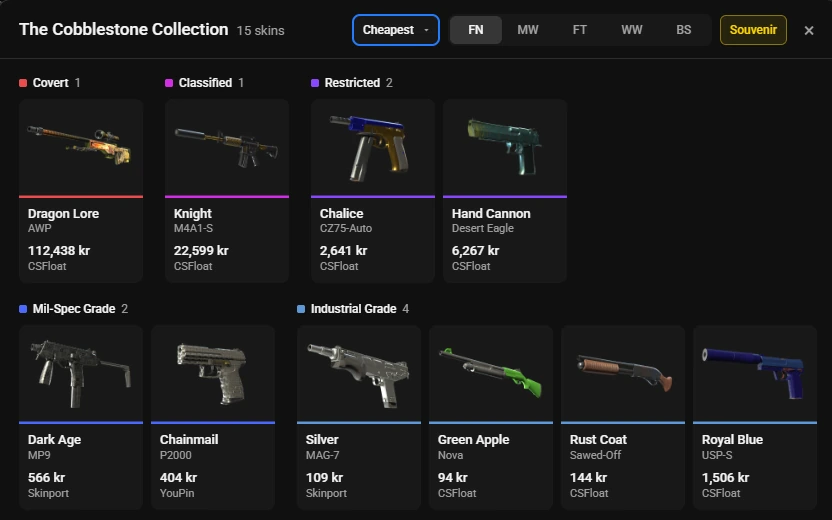
- Collection window The collection line shows its skin count and opens every skin by rarity.
- Collection prices Each skin priced from CSFloat, the cheapest market or one you pick.
- Collection wear and category Wear FN to BS, StatTrak or Souvenir; a skin without one says no FN.
- Collection skin click Signed in, a skin opens its cheapest listing; signed out, CSFloat's search.
Sales
- Sales graph A calm chart replaces CSFloat's, with 1M, 3M, 1Y and ALL.
- Sales figures Range average, 7, 30 and 90-day change and sales a day over the chart.
- Against the average This listing's price as a multiple of the 30-day average.
- This listing on the chart A dashed line marks this listing's price on the chart.
- 40 sales 40 sales plots the last 40 sales as dots in their grade's colour.
- 40 sales on demand If CSFloat has not loaded those sales yet, 40 sales asks for them.
- Median of the 40 40 sales draws the median of those sales.
- Chart hover Hover for the day's values; on 40 sales a ring snaps to the nearest sale.
- Open sales from the graph Click a sale on the graph to open that sold listing.
- Graph caption One line under the tabs: the chart averages every pattern, float and sticker.
- Smart graph scale The axis fits the usual prices; days beyond it show as ▲ or ▼.
- Range average The average skips the extreme days and is named by range, such as 1-month.
- Change by range Change chips follow the range, from 7 d on 1M to all time on ALL.
- Latest Sales grades Each sale in Latest Sales shows its pattern grade and CSFloat's marks.
- Sale details Each sale shows its wear, time listed, and sticker and charm value.
- Grade chips Chips narrow the sales to one grade or this seed, with counts.
- Table figures Median, sales a day and time to sell cover the rows shown.
- Prices as CSFloat prints them Sale prices and medians read in your currency, as CSFloat prints a price.
Toolbar and search
- Tier search Pick a guide's tier; CSFloat's own search shows that tier's listings.
- On csfloat.com/db The tier gem and row on csfloat.com/db: every known copy of the tier.
- One list On csfloat.com/db a tier over 40 seeds is one list, in CSFloat's own sort.
- Tier row in the filters A Tier row above Patterns in the filter sidebar and drawer.
- Tiers button A gem in the toolbar lists guides, systems and tiers; Browse › opens patterns.
- Show in Show tier search in the toolbar, the filters or both.Setting
- Top tier at rest At rest the Tiers button shows the item's top tier gem.
- CSFloat's own results A tier works with CSFloat's cards, filters, sort, listing window and scrolling.
- One tier chip One chip, such as Rank 3 · 30 seeds, stands in for the seed chips.
- Your search back Reset, another item, Back or the switch restore your search and typed seeds.
- Tiers in history and links Back, Forward, a reload or a shared link keep the tier.
- Clear tier While a tier is on, the picker lists Clear tier first.
- Pattern picker Named patterns in big groups like Kami: browse them all, then search one.
- One line for one-tier groups A system with only one tier shows as one row in the picker.
- Search every seed A tier over 40 seeds is searched in full, 35 seeds a request.
- Search progress Progress shows as 2 of 3, with a bar that fills per search.
- Tier parts Over 40 listed seeds, the tier shows in parts: Part 1 of 2.
- Rate limit pause CSFloat's rate limit pauses the search quietly and says why.
- Seed filter check If CSFloat does not apply the seed filter, the page says so.
- Tier premium The tier's lower-quartile ask against plain listings, such as ≈1.4–1.7× plain.
- Premium on hover Hovering the tier's gem in the toolbar shows its premium.
- Few listed With only 2 to 4 listed, it shows the range of their asks against plain.
- Why no premium A dash while there is no value; hover for the reason.
- Premium kept 6 hours Worked out in your browser and kept 6 hours, so repeat picks ask nothing.
- Fade % filter CSFloat's fade filter in the toolbar beside Tiers, with 90+, 95+ and 98+.
- Tiers always shows On a graded item the tier's gem always shows, at every width.
- Auto stays in the row On a tight row the Auto chip shrinks to its icon, never leaving the row.
- CSFloat's buttons stay put Tiers takes spare room, else CSFloat's breadcrumb wraps; its buttons keep size and place.
- Auto-refresh A chip beside CSFloat's refresh button refreshes the search for you.Off by default
- Starts on your click Off until you click it, in that tab only; each page load starts off.Off by default
- Countdown The chip counts down to the next refresh.Off by default
- Refresh pace Every 40 s, 1, 2, 5 or 10 minutes; 1 minute by default.Setting
- Outline new listings Listings new since the last refresh get a thin outline.Off by default
- Tier alerts New tier listings put their count in the tab title while you're elsewhere.Off by default
- Alert sound One soft tone plays with a tier alert.Off by default
- Within CSFloat's limit Slows and pauses near CSFloat's hourly limit, and stops on too many requests.Off by default
- Pauses when you look away Pauses while the tab is hidden, a listing is open, or you scroll down.Off by default
- Waits for you A refresh waits while you point, type or scroll, so nothing moves under you.Off by default
- One tab at a time Runs in one tab at a time and says so in the other.Off by default
- Chip states The chip shows Paused, Limit or Stopped, with the reason on hover.Off by default
- Auto beside Tiers The Auto chip sits next to the tier's gem.Off by default
- Tier summary bar A bar under the toolbar shows the tier's listings and premium over plain.
- Requests left when low The summary bar shows CSFloat's requests left only when under 40.
- Sticker Combos where they fit CSFloat's Sticker Combos tab shows only on items that take stickers.
General
- Master switch One switch turns TrueFloat off on csfloat.com, live, and keeps your settings.
- Theme True dark, pure black, by default; Light or CSFloat's own look instead.Setting
- Colours only The theme changes colours only, never deal, rarity or float colours.
- One switch per feature A toolbar popup with one switch per feature.
- Folding sections Popup sections fold from their heading, and the popup remembers which.
- Sub-switches follow A sub-switch greys out while its parent is off and keeps its value.
- Live changes Most switches take effect in open csfloat.com tabs, no reload needed.
- Hover boxes Long hovers open in a quiet box instead of the browser's tooltip.
- What's new After an update, the popup shows what changed, once.
- Discord invite bar Now and then, a thin bar on csfloat.com invites you to our Discord.
- Reset to defaults Reset every switch, with a second click to confirm.
- Settings sync Your switches follow you across devices with browser sync.
- No tracking Nothing about what you view, search or buy is sent to us.
- Five desktop browsers Works in Chrome, Firefox, Edge, Brave and Opera on desktop.